
Make QR codes
Make the QR code from the prepared payslip’s barcode parts and the reference that the API returns. The renderer does not make a network call.
If your PDF library accepts vector images, use the SVG. If you need a raster image, use the PNG renderer. Do not convert the SVG to a raster image.
import { buildBarcodePayload, createBarcodePng, createBarcodeSvg } from "@verifiabl/issuer";

const parts = prepared.barcodeParts(result.verifiablReference);

const { svg } = createBarcodeSvg(parts, { environment: "sandbox" });
const { png } = await createBarcodePng(parts, { environment: "sandbox" }, 960);
const xmpPayload = buildBarcodePayload(parts);var parts = prepared.BarcodeParts(result.VerifiablReference);
var options = new BarcodeSvgOptions { Environment = VerifiablEnvironment.Sandbox };
string svg = VerifiablBarcode.CreateSvg(parts, options).Svg;
byte[] png = VerifiablBarcode.CreatePng(parts, options, pixelWidth: 960).Png;
string xmpPayload = VerifiablBarcode.BuildPayload(parts);parts = prepared.barcode_parts(result.verifiabl_reference)
svg = Verifiabl::Issuer.build_barcode_svg(**parts, environment: :sandbox).svg
png = Verifiabl::Issuer.build_barcode_png(**parts, environment: :sandbox, width: 960).png
xmp_payload = Verifiabl::Issuer.build_barcode_payload(**parts)Options
Section titled “Options”| Option | Name | Default |
|---|---|---|
| Environment | environmentEnvironmentenvironment: |
Production |
| SVG width | widthWidthwidth: |
480 |
| PNG width | The third argument of createBarcodePngThe pixelWidth argument of CreatePngwidth: on build_barcode_png | 720 |
| Highest error correction | maxErrorCorrectionMaxErrorCorrectionmax_error_correction: |
Medium |
- Environment selects the host in the scan URL. Set it to the same environment as your client.
- SVG width is the total width of the SVG image. The minimum is 480.
- PNG width is 480, 720, 960 or 1440 pixels. Set the print size when you put the image in the PDF.
- Highest error correction is the maximum level of QR error correction. It accepts "M" (Medium) or "Q" (Quartile)Medium, Quartile or Low:m (Medium) or :q (Quartile). Medium is correct for most payslips. Use Quartile for payslips that can get damaged.
Low makes the QR modules larger, but the QR code tolerates less damage.
Layout is "vertical" or "horizontal". The default is "vertical". The horizontal layout puts the “Secured by Verifiabl” frame to the right of the QR code, at the same QR code size. To use it, set layout: "horizontal" in the options of createBarcodeSvg or createBarcodePng. For the horizontal layout, the minimum SVG width is 940. The PNG width is 940, 1410, 1880 or 2820 pixels, and the default is 1410.
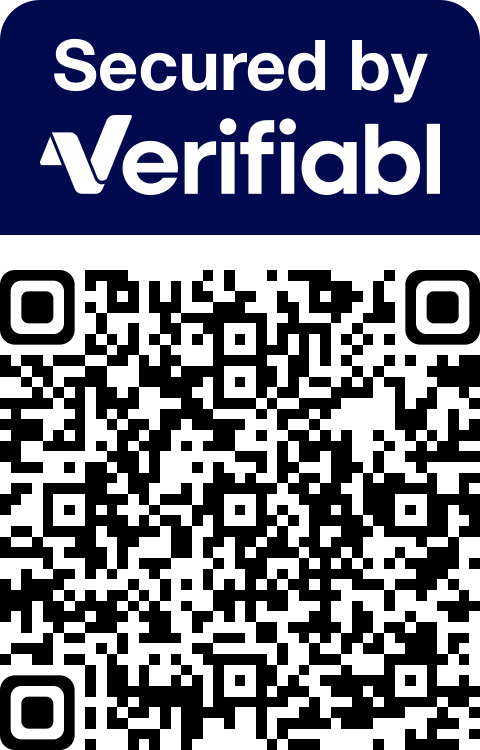
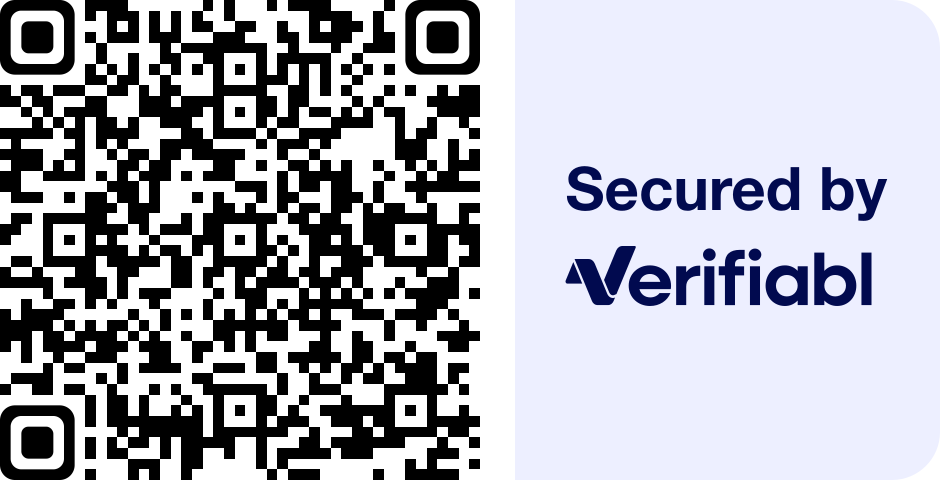
import { createBarcodePng, createBarcodeSvg } from "@verifiabl/issuer";
const parts = prepared.barcodeParts(result.verifiablReference);const { svg } = createBarcodeSvg(parts, { environment: "sandbox", layout: "horizontal" });const { png } = await createBarcodePng(parts, { environment: "sandbox", layout: "horizontal" }, 1410);
Layout is BarcodeLayout.Vertical or BarcodeLayout.Horizontal. The default is Vertical. The horizontal layout puts the “Secured by Verifiabl” frame to the right of the QR code, at the same QR code size. To use it, set Layout = BarcodeLayout.Horizontal in BarcodeSvgOptions for CreateSvg or CreatePng. For the horizontal layout, the minimum SVG width is 940. The PNG width is 940, 1410, 1880 or 2820 pixels, and the default is 1410.
BarcodeParts parts = prepared.BarcodeParts(result.VerifiablReference);var options = new BarcodeSvgOptions{ Environment = VerifiablEnvironment.Sandbox, Layout = BarcodeLayout.Horizontal,};string svg = VerifiablBarcode.CreateSvg(parts, options).Svg;byte[] png = VerifiablBarcode.CreatePng(parts, options, pixelWidth: 1410).Png;Layout is :vertical or :horizontal. The default is :vertical. The horizontal layout puts the “Secured by Verifiabl” frame to the right of the QR code, at the same QR code size. To use it, set layout: :horizontal on build_barcode_svg or build_barcode_png. For the horizontal layout, the minimum SVG width is 940. The PNG width is 940, 1410, 1880 or 2820 pixels, and the default is 1410.
parts = prepared.barcode_parts(result.verifiabl_reference)
svg = Verifiabl::Issuer.build_barcode_svg(**parts, environment: :sandbox, layout: :horizontal).svgpng = Verifiabl::Issuer.build_barcode_png(**parts, environment: :sandbox, layout: :horizontal, width: 1410).png
The result has a degradedDegradeddegraded property. It is true if the renderer used less error correction or smaller modules than usual.
To put the QR code on the payslip and add the metadata copy, follow steps 4 and 5 of Make the QR code in your system.